 Stilos
Grocery list organizer
A grocery list sorted by aisle
Write the list in whatever order things come to mind, or paste one in. Press Organize and Stilos groups it by store aisle, so everything from the same part of the store sits together.
One press groups the whole list
Nobody thinks of groceries in store order. You remember bread, then bananas, then the dish soap you ran out of yesterday. Organize takes that list as it is and rearranges it, so you can work through the store one section at a time and stop doubling back.
- Paste any list. Commas, bullets, numbers or one long line from a text message. Each thing becomes its own item.
- Knows brands, not just foods. Paper towels, toothpaste and dish soap land in the right place too.
- Changed your mind? Undo puts the items back where they were.
- Works with no signal. The sorting happens on your device, so it works at the back of the store.
The same list after pressing Reorganize: sorted into 13 aisles.
Weekend groceries
Produce (3)
Fruit
- Bananas
Vegetables
- Tomatoes
Salad & Prepared
- Baby spinach
Meat, Seafood & Plant Proteins (1)
Poultry
- Chicken thighs
Dairy, Eggs & Cold (3)
Cheese
- Cheddar cheese
Yogurt & Cultured
- Greek yogurt
Eggs
- A dozen eggs
Pantry & Dry Goods (2)
Oils, Sauces & Condiments
- Olive oil
Grains & Pasta
- Spaghetti
Bakery & Bread (1)
Fresh Breads
- Sourdough bread
Frozen (1)
Frozen Produce
- Frozen peas
Beverages (1)
Juices & Soft Drinks
- Orange juice
Household & Cleaning (2)
Kitchen Supplies
- Dish soap
- Paper towels
A looping demonstration of the Stilos screen. In the app it works on your own lists.
In the app
The same list, before and after
This is the real thing on a phone: fourteen items typed in no particular order, then the same list after one press. Nothing was retyped or dragged around.
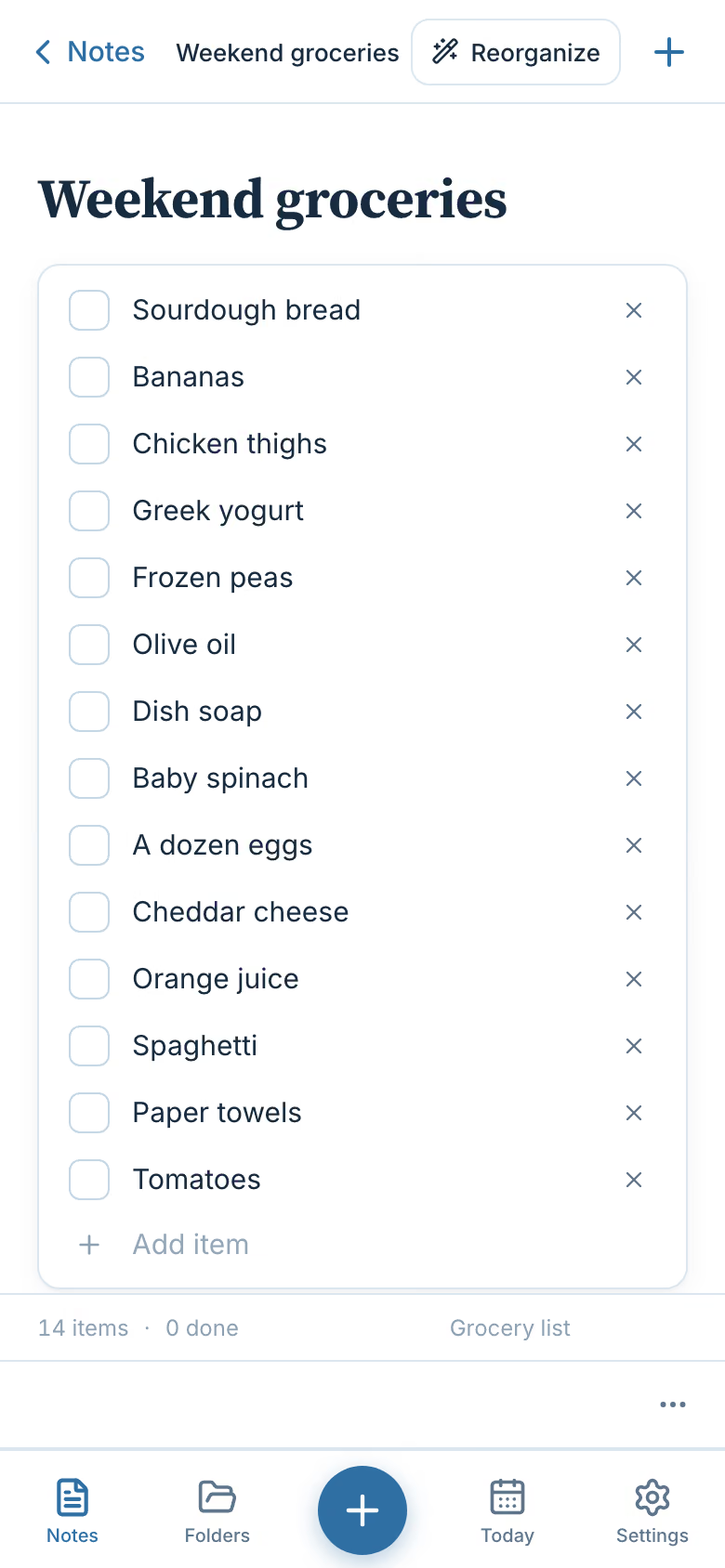
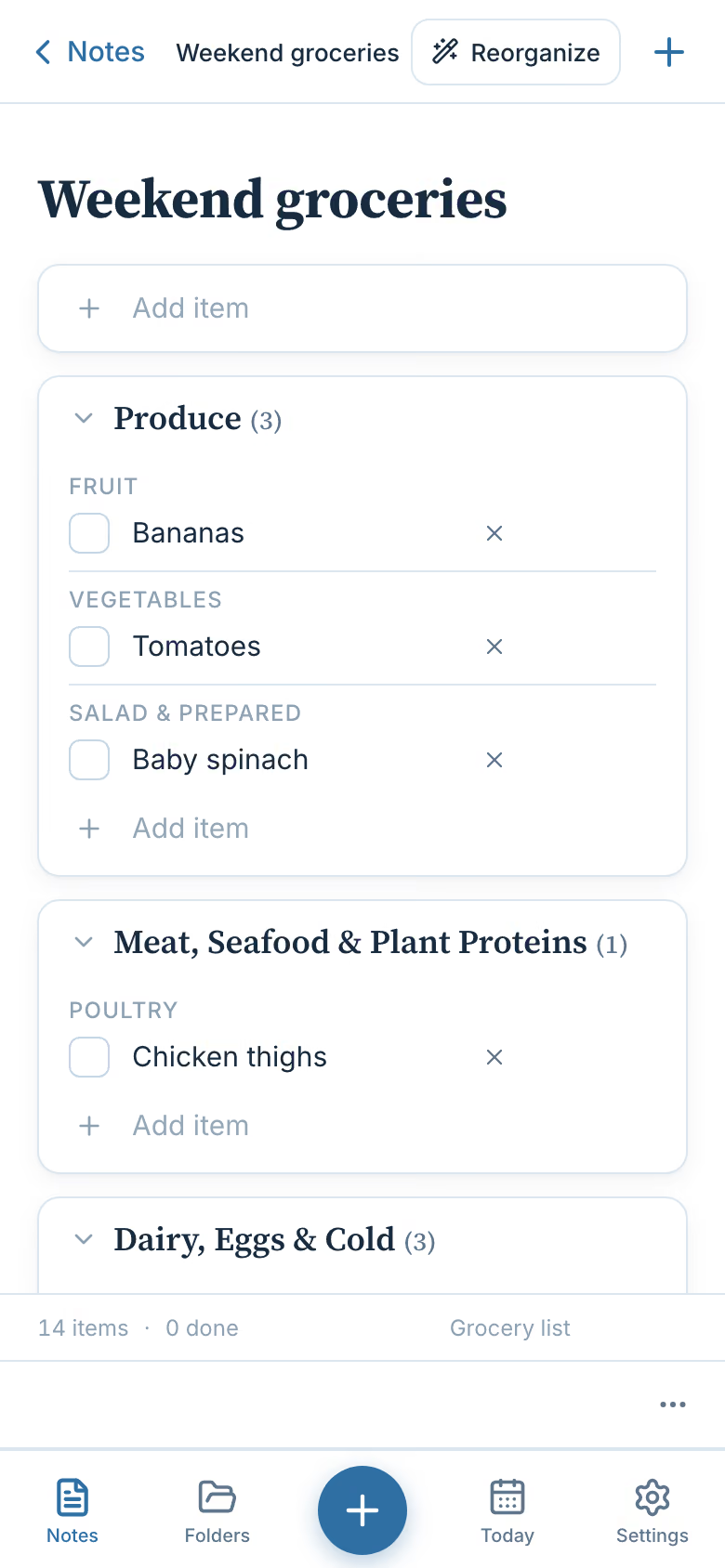
In the app, the button is labeled Reorganize. It does the same thing every time you press it.
How it works
From a messy list to a tidy one
- Start a grocery list. Open Groceries and press the plus button. A grocery list is its own kind of note, with a box to tick beside every item.
- Add items your way. Type them one at a time, or paste a whole list. Stilos splits a pasted list at every comma, bullet, number and line break.
- Press Organize. Items are grouped by department, such as Produce, and then by aisle inside it, such as Fruit and Vegetables. A short message tells you how many aisles the list was sorted into.
- Shop and tick things off. Tick each item as it goes in the basket. Clear the checked items when you want a shorter list; they move to a Completed group and are not deleted.
- Add more and press it again. Remembered something? Add it and press Organize again. New items join the right aisle and the rest stay where they are.
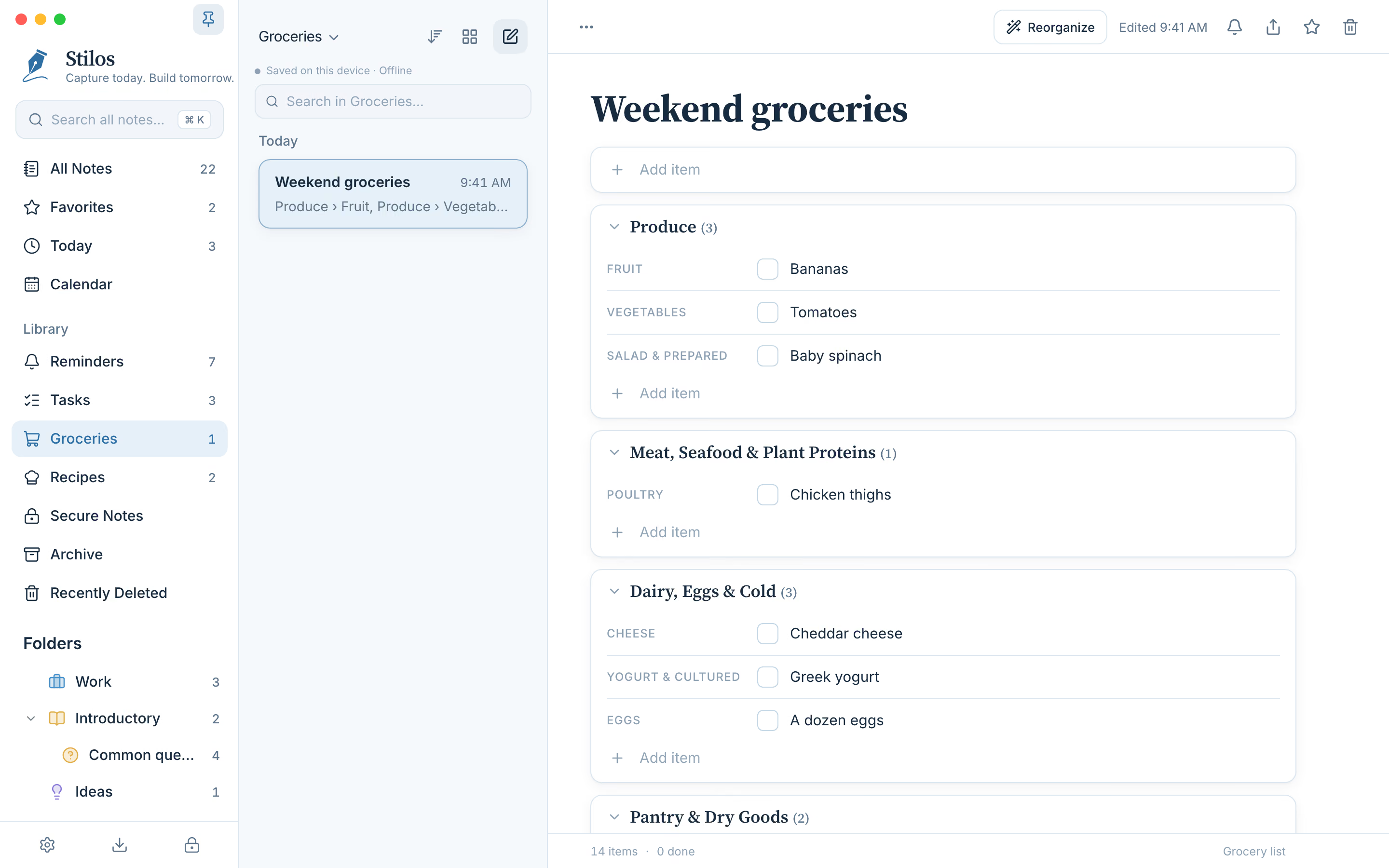
The same sorted list on a computer.
What Organize knows, and what it does not
Stilos carries its own dictionary of about 59,000 product and brand terms. It covers ten departments: produce, meat and seafood, dairy and eggs, pantry goods, bakery, frozen food, drinks, household and cleaning, personal care, and pet care. That is why a list that mixes food with toothpaste and paper towels still comes out in sensible groups.
Amounts and descriptions do not confuse it. "2 cups of flour" is filed as flour, "3 large eggs" as eggs, and "organic bananas" as bananas. If the same item ends up in one aisle twice, the two lines become one.
It is honest about what it cannot place. Anything the dictionary does not recognize goes into a group called Uncategorized at the end of the list, and the message after sorting tells you how many items went there. Nothing is ever removed from your list.
Two limits are worth knowing before you rely on it. First, the departments always appear in the same order, starting with produce. That order follows a typical store, not the exact layout of the one you shop in. Second, Organize works on grocery lists only. A to-do list or an ordinary note is left exactly as you wrote it.
All of this happens on your phone or computer. The dictionary is part of the app, so your list is not sent anywhere to be sorted, and it works with no connection at all. See how Stilos keeps notes private.
A grocery list does not have to start as one. If you keep recipes in Stilos, a recipe can write the grocery list for you from its ingredients.
Good to know
Questions about this
Can I paste a grocery list from a message or another app?
Yes. Paste it into a grocery list and Stilos splits it into separate items at every comma, bullet, number and line break. A list someone sent you as one long sentence works too.
Does sorting work without an internet connection?
Yes. The sorting happens on your device, using a dictionary that is part of the app. Your list is not sent anywhere, so it works with no signal.
What happens to items Stilos does not recognize?
They are placed in a group called Uncategorized at the end of the list. Nothing is removed, and you can still tick those items off like any others.
Does it follow the layout of my own store?
No. The departments always appear in the same order, starting with produce, which follows a typical store. You cannot yet set the order for one particular store. If you would use that, tell us through the contact page.
Can I undo the sort?
Yes. Undo puts the items back where they were. Anything you ticked off or added after sorting is left as it is.
More in Stilos
The rest of the app
Private notes, no account
Notes stay on your own device. Add a password, and a second lock for the most private ones.
How Stilos keeps notes private →To-do lists and reminders
Tick things off, set a reminder on any note, and see every unfinished task in one view.
How tasks and reminders work →Recipes that write your list
Keep ingredients, steps and photos together, then turn the ingredients into a grocery list.
How recipes work →A calendar for your notes
See reminders and the notes you worked on, by week or by month.
How the calendar works →Free today
Try it on your next shopping trip
Stilos is free and asks for no account. If Organize is missing something you need, tell us and we will look at building it.